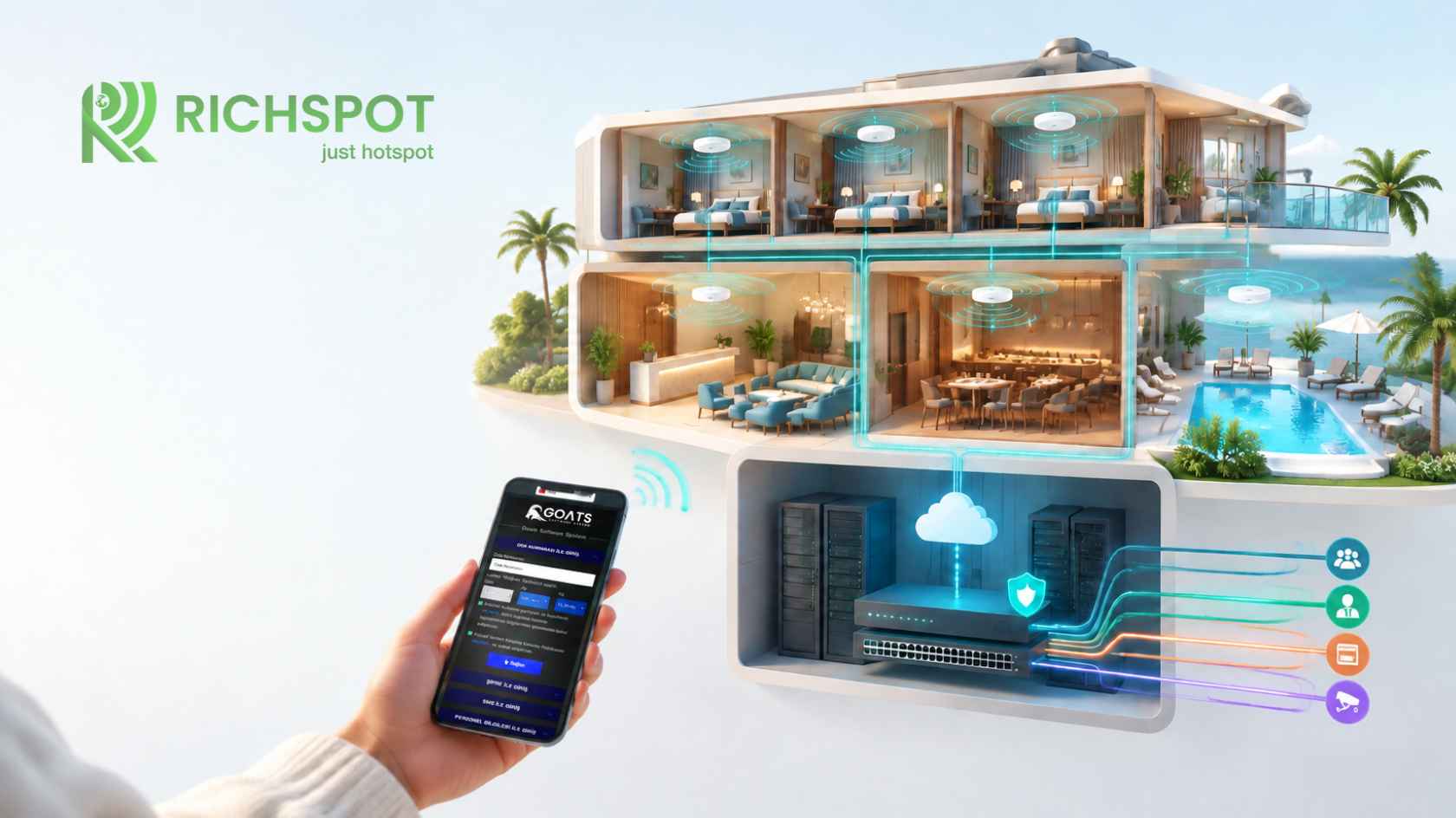
Setting Up Hotel Internet with MikroTik: A Step-by-Step Project Guide
In short: how do you set up hotel internet with MikroTik?
Setting up hotel internet with MikroTik consists of calculating user capacity; selecting suitable routers, switches and access points; separating guest and staff networks with VLANs; configuring DHCP, DNS, NAT and firewall rules; enabling the hotspot service on the guest VLAN; defining speed profiles; connecting to external hotspot software via RADIUS if required; and testing the whole setup with different devices. A successful installation depends not only on choosing the right router but on designing capacity, coverage, backbone, internet uplink and business processes together.
Why MikroTik?
MikroTik devices are very widely used in hotels in Turkey because they offer enterprise functions such as routing, VLANs, firewalling, queue-based bandwidth management, VPN and hotspot at an affordable cost. The RouterOS operating system provides a similar management logic across all devices, making it possible to build scalable architectures from a small boutique hotel to a property with hundreds of rooms. It is also relatively easy to find technical staff experienced with MikroTik in Turkey.
At the same time, MikroTik's flexibility brings a risk of misconfiguration. A setup left on default settings, undocumented or with tangled rule order can cause serious problems in peak season. The installation should therefore be approached with project discipline.
Step 1: Needs and capacity analysis
Before starting the installation, the following questions should be answered:
- How many rooms, common areas and buildings does the property have?
- How many devices will connect concurrently in peak season?
- What is the internet line speed, and is there a backup line?
- What standard is the existing cabling? Does cabling reach the rooms and common areas?
- Which authentication method will be used (room number, SMS, voucher)?
- Is integration with the property management system required?
- Will other systems such as staff, POS, cameras and IPTV use the same infrastructure?
Example calculation: In a 150-room city hotel, assuming 90 percent occupancy, 1.8 guests per room and 2 devices per guest gives roughly 490 devices. Adding 150 devices for the meeting room and restaurant makes a design target of 650 devices. Assuming 50 percent of them will be active in the evening, the gateway and internet line should be sized for about 325 concurrently active users.
Step 2: Hardware selection
Gateway (router)
Hotspot, firewall, NAT and queue processing put a heavy load on the router CPU. Entry-level and mid-range RouterBOARD models may be enough for small boutique hotels, but for properties serving hundreds of concurrent users, models with multi-core CPUs and high packet-processing capacity, such as the CCR series, should be considered. When choosing a model, look not only at the number of ports but at the CPU, memory, licence level and the manufacturer's published performance test results.
Switch infrastructure
Managed switches with VLAN support and PoE are needed. The power requirements of the access points should be compared with the total PoE budget, and it should be calculated whether uplinks from floor switches to the core switch (preferably fibre or 10G) can carry the total traffic.
Wireless access points
Ceiling-mounted models should be chosen indoors and weather-resistant models outdoors. Access points can be configured centrally with central wireless management (for example CAPsMAN in RouterOS). Access points from other brands can also be used; what matters is that the guest SSID is tagged to the correct VLAN.
Redundancy
For critical properties, a second internet line, UPS power backup and a pre-configured spare router are recommended.
Step 3: IP and VLAN plan
An example VLAN and IP plan for a hotel network:
- VLAN 10 – Guests: 10.10.0.0/22 (about 1,000 addresses), hotspot active
- VLAN 20 – Staff: 10.20.0.0/24
- VLAN 30 – POS and PMS: 10.30.0.0/24
- VLAN 40 – Cameras: 10.40.0.0/24
- VLAN 50 – IPTV and IoT: 10.50.0.0/24
- VLAN 99 – Network management: 10.99.0.0/24
On the guest network, the DHCP lease time should be kept short (for example 1 hour) so that addresses of departing devices are released quickly. This plan must be documented and matched with switch port assignments on site.
Step 4: Basic configuration (RouterOS v7 example)
The commands below are an example starting configuration for the guest VLAN and hotspot. Interface names, address blocks and parameters should be adapted to your environment. Take a configuration backup before applying them to a live device.
# Bridge and VLAN filtering
/interface bridge add name=br-lan vlan-filtering=yes
/interface bridge port add bridge=br-lan interface=ether2
/interface bridge vlan add bridge=br-lan tagged=br-lan,ether2 vlan-ids=10,20,99

# VLAN interfaces
/interface vlan add interface=br-lan name=vlan10-guest vlan-id=10
/interface vlan add interface=br-lan name=vlan20-staff vlan-id=20

# Guest network addressing and DHCP
/ip address add address=10.10.0.1/22 interface=vlan10-guest
/ip pool add name=pool-guest ranges=10.10.0.10-10.10.3.250
/ip dhcp-server add name=dhcp-guest interface=vlan10-guest address-pool=pool-guest lease-time=1h
/ip dhcp-server network add address=10.10.0.0/22 gateway=10.10.0.1 dns-server=10.10.0.1

# Time synchronisation (critical for logging)
/system ntp client set enabled=yes
/system ntp client servers add address=pool.ntp.org
Step 5: Hotspot and user profiles
# Hotspot server profile and hotspot
/ip hotspot profile add name=hsprof-guest hotspot-address=10.10.0.1 dns-name=wifi.hotel.local login-by=http-chap use-radius=yes
/ip hotspot add name=hs-guest interface=vlan10-guest address-pool=pool-guest profile=hsprof-guest

# User profiles (example speed and time values)
/ip hotspot user profile add name=standard rate-limit=5M/5M shared-users=3 idle-timeout=30m
/ip hotspot user profile add name=premium rate-limit=20M/20M shared-users=4 idle-timeout=30m

# RADIUS for external hotspot software (address and secret are examples)
/radius add service=hotspot address=203.0.113.10 secret=AStrongSharedSecret
If an external captive portal or SMS service is used, the relevant domains must be added to the walled garden:
/ip hotspot walled-garden add dst-host=portal.example-hotspot.comHow should speed profiles be set?
The speed values in user profiles should be based on line capacity and real usage data, not guesswork. A practical starting method: allocate about 80 percent of total internet line capacity to guest traffic, divide this by the estimated number of concurrently active users at peak, and treat the result as the target guaranteed speed per user. For example, if 400 Mbps of a 500 Mbps line is allocated to guests and 200 concurrently active users are expected, that is an average of 2 Mbps per user. Since not all users use full capacity at the same time, the upper limit (rate-limit) can be set at several times this value, for example 5–8 Mbps.
In RouterOS, the rate-limit value defined in a hotspot user profile creates a dynamic simple queue for each session. In properties with many users, remember that the number of queues increases CPU load; if necessary, choose more powerful hardware or optimise the queue structure. Premium speed packages can be offered to business guests and suites with separate profiles.
Example architectures by scale
Boutique hotel (15–40 rooms)
A single mid-range MikroTik router, one or two PoE switches and 6–12 access points are often enough. Three VLANs for guests, staff and management; one internet line with a mobile backup; and room number or one-click login via external hotspot software is a typical setup.
City hotel (80–200 rooms)
A router with high packet-processing capacity, PoE switches distributed across floors and a fibre backbone are needed. Guest, staff, POS, camera, IPTV and management VLANs are separated. Internet lines from two different providers are configured for failover. Separate capacity is planned for meeting rooms.
Resort and holiday village (200+ rooms)
At the core, a powerful and preferably redundant router setup, fibre links between buildings, outdoor access points and central wireless management are used. User groups (staying guests, day visitors, conference participants, staff) are managed with separate policies. Central monitoring and reporting become essential.
Step 6: Security and VLAN isolation
Traffic from the guest VLAN to other internal networks must be blocked. Example rule:
/ip firewall filter add chain=forward in-interface=vlan10-guest out-interface=!ether1-wan action=drop comment="Guests internet only"In addition:
- Remove the default "admin" user and create a separate account for each administrator.
- Under /ip service, disable unused services (telnet, ftp, www); allow WinBox and SSH access only from the management VLAN.
- If the API is used, allow only the address of the hotspot software.
- Enable client isolation for the guest SSID on the access points.
Step 7: Testing
Before going live, the following tests should be carried out:
- Connection and automatic portal opening with Android, iOS, Windows and macOS devices
- Successful and failed login scenarios with each authentication method
- Internet access after login and correct application of the speed profile
- Session timeout and idle timeout working as intended
- Verification that access from the guest network to staff, POS and management networks is blocked
- Roaming tests between access points
- Failover to the backup line during an internet outage
- Checking that log records are created with correct time information
Step 8: Go-live and documentation
- Schedule the switchover for a low-occupancy period and night hours.
- Keep a backup of the previous configuration and a rollback plan ready.
- Brief the reception team on the new connection flow.
- Create a network document containing the IP plan, VLAN list, switch port assignments, user profiles and administrator accounts.
- Closely monitor reports in the management panel and user complaints during the first weeks.
Maintenance and sustainability
- Regularly upgrade RouterOS and device software to the current stable release; before updating, take backups with /system backup save and /export file=.
- Review CPU, memory and active user trends monthly.
- Reassess capacity and hardware condition before the season.
- Record configuration changes with dates and descriptions.
Common mistakes
- !Choosing the router by price alone without calculating the number of users.
- !Running all devices on a single flat network (without VLANs).
- !Adding firewall rules that conflict with the dynamic rules created by the hotspot.
- !Not enabling NTP and keeping logs with incorrect time information.
- !Leaving the default administrator account and services open.
- !Not documenting anything, so that the setup cannot be understood when the installer leaves.
Frequently asked questions
Which MikroTik model should I choose?
The right model depends on the number of concurrently active users, internet line speed, the complexity of the rules applied and the need for redundancy. After calculating capacity, evaluate the manufacturer's performance test results together with your hotspot software provider's recommendations.
Are there differences between RouterOS v6 and v7 for hotspot?
The basic hotspot logic is similar in both versions, but some menu structures, the wireless management package and the syntax of settings such as NTP have changed. The current stable v7 release is recommended for new installations. If external hotspot software will be used, the supported version must be confirmed.
Can I use my existing access points?
Generally yes, if the access points support VLAN tagging (802.1Q) and can map the guest SSID to the correct VLAN. Old, low-capacity devices may cause performance problems in busy areas.
How long does installation take?
A few days may be enough for a small boutique hotel. For large properties, including site survey, cabling, configuration, testing and pilot phases, it can take several weeks.
Can the hotel's own staff do the installation?
Technical staff with basic MikroTik knowledge can handle small-scale installations. However, for setups with many VLANs, redundancy and hundreds of users, working with an experienced network specialist or the hotspot provider's technical team significantly reduces the risks of misconfiguration, security gaps and outages in the middle of the season. Basic operational training for hotel staff after installation is also important.
Should I manage the hotspot on MikroTik or in external software?
MikroTik is strong at enforcing network access. For needs such as corporate portal design, multiple authentication methods, PMS integration, central reporting and log management, working together with external hotspot software provides a more sustainable setup.
Next step with Richspot
Richspot Hotspot was developed to manage the guest access experience on MikroTik infrastructure, with an API structure optimised specifically for MikroTik RouterOS. After installation, users, bandwidth, active sessions, voucher codes, SMS records and logs can be tracked from a single management panel.
Confirm your device model and RouterOS version compatibility and request a technical assessment of your hotel network from the Richspot team.
